Access/Connect
Trying to connect with a wrong password 5 times in a row will get your IP address banned for 1 hour!
SSH access
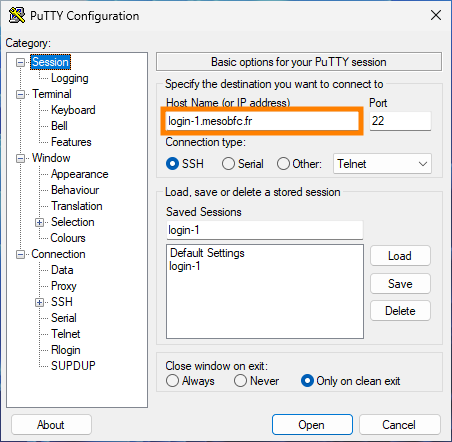
Once your account is created and authorized to use MesoBFC cluster, you can connect using SSH protocol to the
frontal node login-1.mesobfc.fr.
- GNU Linux
- Windows
- Mac OS X
Initiate a session using the ssh command from the Linux command line. The launch command looks like this:
$ ssh youraccount@login-1.mesobfc.fr
You will need an SSH client that supports the SSH-2 protocol: e.g. Bitvise, OpenSSH, PuTTY, or SecureCRT.
We will take PuTTY as an example:
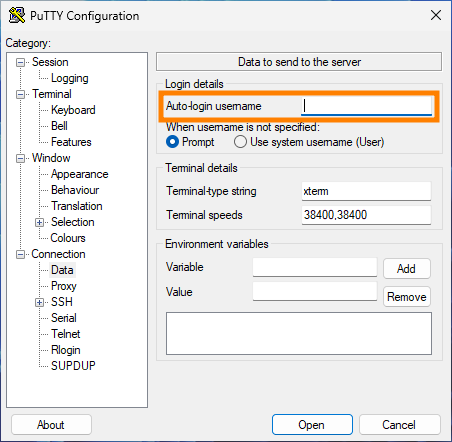
In the Connection→Data category, you can put your userame in Auto-login username field so that PuTTY does not prompt you for it.
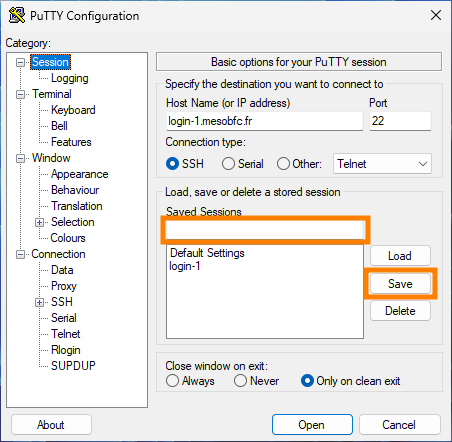
You can also save your current settings by simply entering the name you want in the field (framed in orange in screenshot) and clicking Save.
You can see that a session has already been saved in the screenshot : login-1.
Initiate a session using the ssh command from the Linux command line. The launch command looks like this:
$ ssh youraccount@login-1.mesobfc.fr
Graphical access
Using SSH
- GNU Linux
- Windows
- Mac OS X
To connect with X11 support (usually required for applications with graphical user interfaces), use the -X or -Y switch with SSH command:
$ ssh -X youraccount@login-1.mesobfc.fr
Windows does not provides an X server, so you have to download and install one: e.g. Xming or VcXSrv.
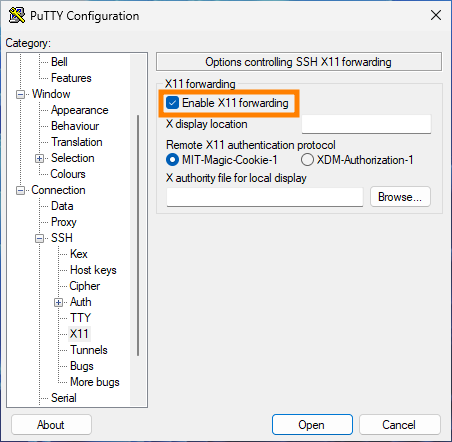
On your SSH client, you will also have to configure X11 forwarding.
For example for PuTTY, the X11 forwarding settings are inside Connection→SSH→X11 category.
To connect with X11 support (usually required for applications with graphical user interfaces), use the -X or -Y switch with SSH command:
$ ssh -X youraccount@login-1.mesobfc.fr
Using X2GO
An alternative is X2GO, you can download it here and use it as follows:
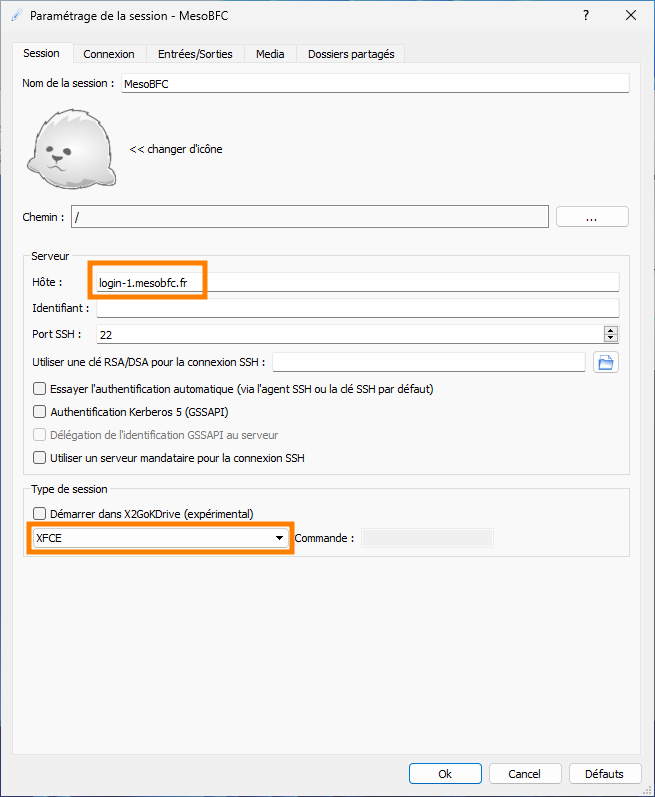
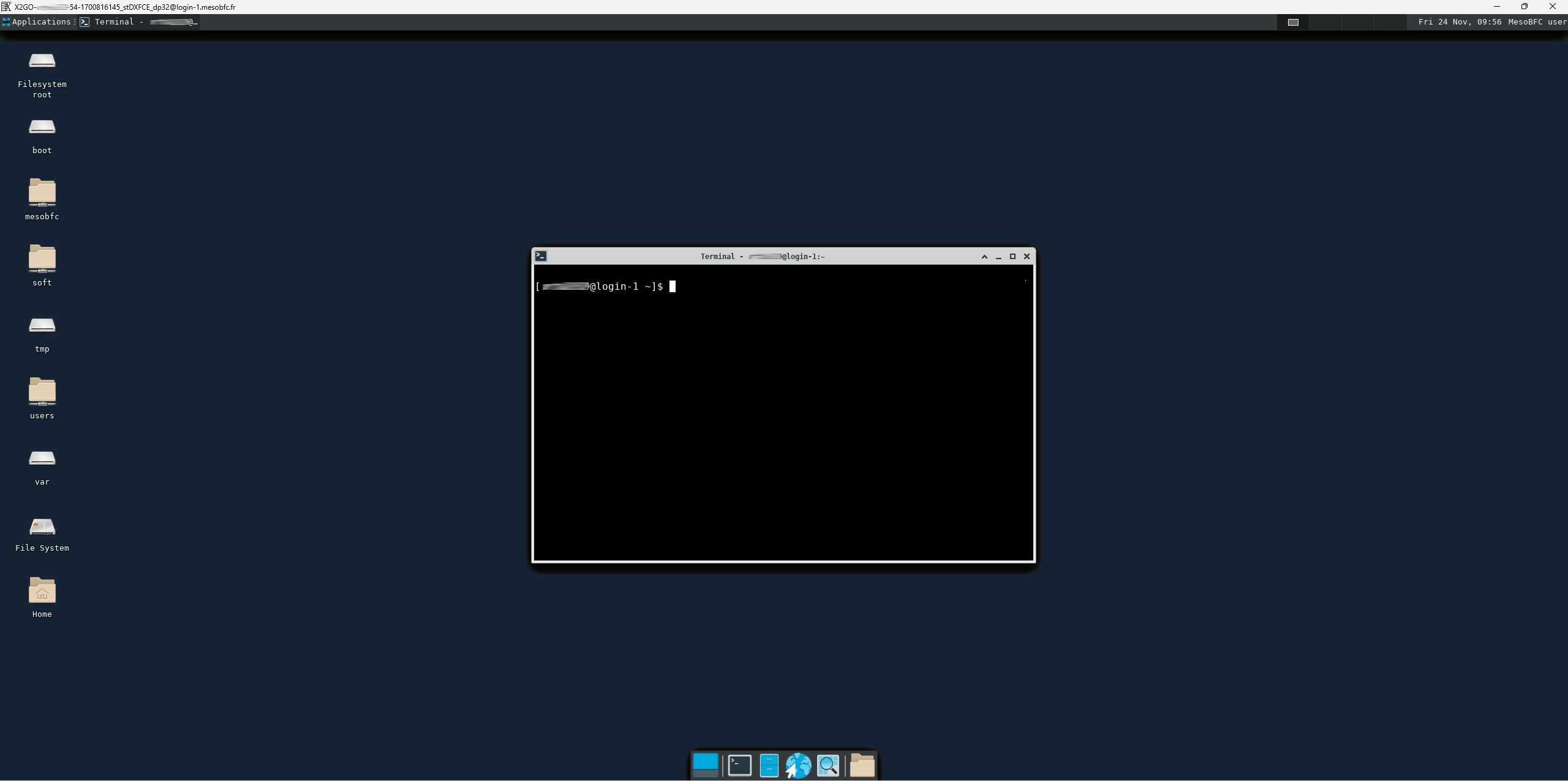
Once connected, we are in XFCE desktop environment:
Changing your password
Once connected, you may need to change your password for security reasons.
Simply run passwd command in your terminal, the system will first ask you for your current password.
You will then be asked to enter your new password once, and it will be checked against certain rules. For example, it must contain at least 1 number, 1 lowercase letter, 1 uppercase letter and be at least 12 characters long.
Finally, if your new password meets the requirements, you will need to confirm it by entering it a second time.